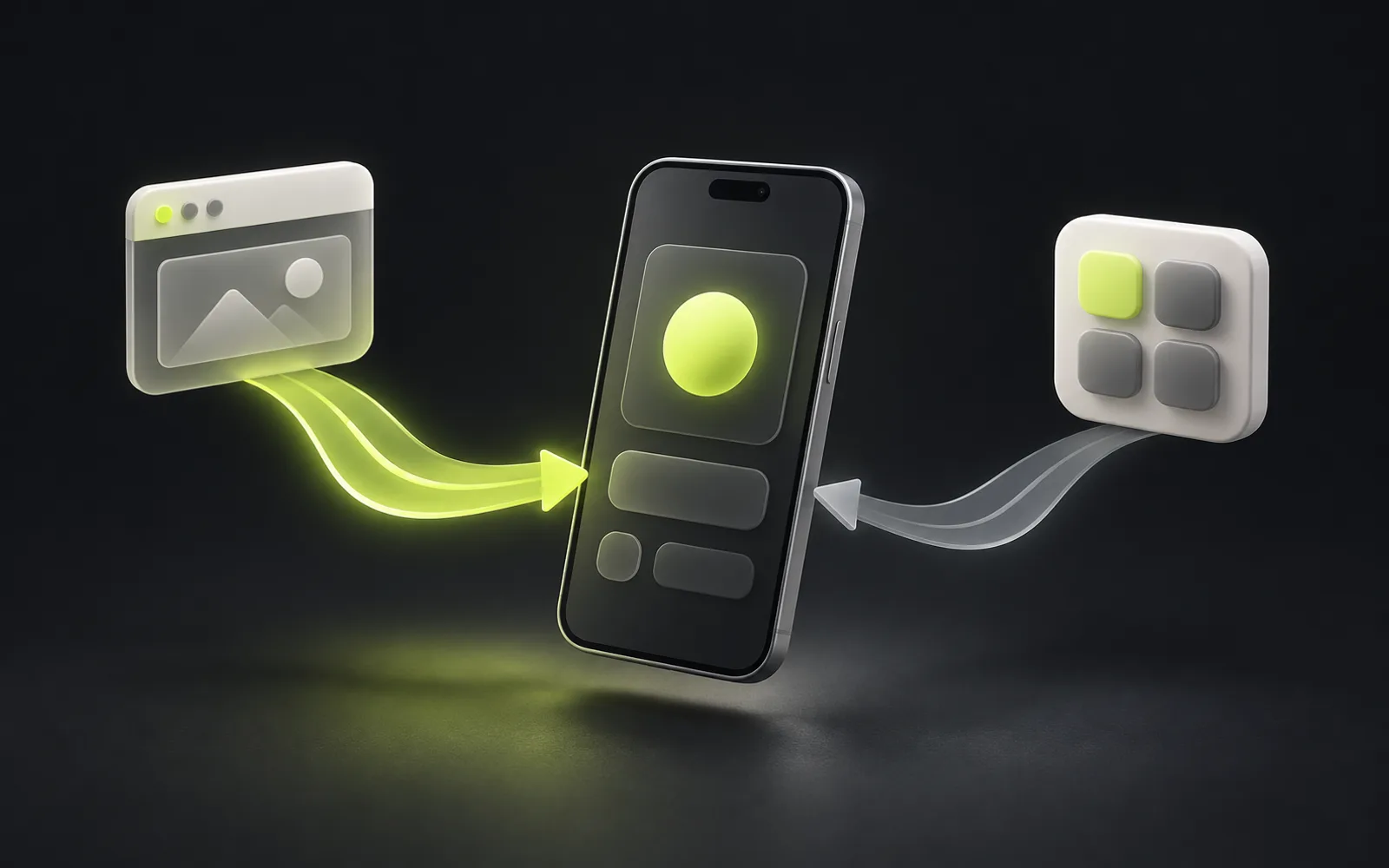
Responsive design means the same page rearranges its grid, text and image sizes to fit the screen width: on a desktop, columns sit side by side; on a phone, they stack. It relies on the viewport tag, a fluid grid and CSS rules for different widths (breakpoints). The result has to be checked not only in a browser emulator but on real phones.
After this you will be able to
- Explain why the viewport tag is needed and how breakpoints and a fluid grid change the layout
- Design a page mobile-first: primary action, single column, then expansion
- Size touch targets using WCAG (24 and 44 CSS px), Apple (44 pt) and web.dev (48) guidance
- Test a site on real phones against a checklist of common responsive bugs
Contents
What responsive design is and why you cannot skip it
Sites used to get a separate mobile version on a subdomain such as m.site.kz. Today the standard approach is responsive design: one site, one address, one codebase, with the layout changing according to screen width. The menu collapses into a burger, three columns of cards become one, large illustrations are swapped for lighter ones.
Separate mobile version
- Two sites that have to be maintained in parallel
- Content on the two versions drifts apart over time
- Redirects between addresses are required
- Tablets end up in one version or the other
Responsive site
- One address and one set of content for all devices
- A text edit shows up everywhere at once
- The layout adapts smoothly to any width
- Easier to maintain and grow
Mobile-first: why you start with the phone
Mobile-first is an approach where the page is designed and built for a narrow screen first, then expanded for tablets and desktops. A narrow screen forces you to decide what matters: what is truly important, which button is the main one, what you can do without. Expanding a simple layout is easier than squeezing an overloaded one.
Define the main action
What a phone visitor should do first: call, message you, book.
Build a single-column layout
Sections stack in order of importance, with the main button within reach of the thumb.
Add breakpoints
Where the content gets room to breathe, columns line up side by side and the full menu appears.
Test on real devices
Walk through key scenarios on several phones and browsers, not just in an emulator.
In practice, mobile-first affects the content too, not just the layout. A long paragraph that takes three lines on a desktop becomes a full screen of solid text on a phone. So it is better to write copy for the main sections short from the start and move details into expandable blocks or separate pages.
Viewport, breakpoints and fluid grids
The first thing responsiveness cannot work without is the viewport tag in the page code: <meta name="viewport" content="width=device-width, initial-scale=1">. Without it, a mobile browser renders the page on a virtual canvas as wide as a desktop screen (MDN gives 980px as an example) and shrinks it — the text gets tiny and rules for narrow screens never apply.
A breakpoint is the screen width at which the layout changes. Good practice is to place breakpoints where the content breaks, not at the sizes of specific phone models: there are too many devices and their sizes keep changing. Between breakpoints a fluid grid does the work: widths are set in percentages and fractions rather than fixed pixels.
Narrow screen — phone
- What usually changes
- One column, burger menu, large buttons, simplified illustrations
Medium — large phone in landscape, tablet
- What usually changes
- Two columns of cards, part of the menu returns to the header
Wide — laptop and desktop
- What usually changes
- Full menu, three or four columns, sidebars
Very wide monitor
- What usually changes
- Content is capped at a maximum width so lines do not stretch
Fingers instead of a cursor: button sizes
A mouse cursor is precise; a finger is not. That is why buttons and links on phones need a large enough tap area (touch target) and space between them. Official guidelines give the reference points:
2424
CSS pixels — minimum target size in WCAG 2.2, criterion 2.5.8 (level AA), with exceptions
4444
CSS pixels — the enhanced WCAG criterion 2.5.5 (AAA); Apple recommends 44×44 pt on iOS
4848
device-independent pixels — the recommended minimum on web.dev
In our experience, the most frequent trouble spots are social media icons in the footer, close buttons on pop-ups and links inside small print: they look small, and their tap area has to be extended with padding, even if the icon itself stays small.
Images and text on a small screen
An image made for a wide monitor weighs just as much on a phone but is shown several times smaller. Responsive images solve this: the browser picks a file of the right size by itself.
- The srcset and sizes attributes give the browser several widths of one image — it downloads the one that fits
- The <picture> element lets you show a different crop on phones: for example, a close-up instead of a wide panorama
- Modern formats such as WebP and AVIF are usually lighter than JPEG and PNG at the same quality
- Every image has its width and height set — so the page does not jump while the image loads
- Images below the first screen load lazily (loading="lazy")
- Text is set at a size that reads without zooming, and lines do not run off the edge of the screen
A similar rule applies to text. Font sizes and spacing are easier to set in relative units (rem, percentages, viewport units) — that way they scale with the screen and respect the user’s settings if they have enlarged the system font. A headline that looks striking at 72 pixels on a desktop has to shrink on a phone, or a single word will fill the whole line and start breaking awkwardly.
Common bugs and how to test a site
Device Mode in Chrome DevTools is handy for a quick check, but it does not replace a real phone: an emulator cannot convey what a finger tap feels like, how the on-screen keyboard behaves, the quirks of mobile Safari or a slow mobile network. Before launch, walk through the page by hand on at least one iPhone and one Android phone.
The most common bug we see when auditing other sites is horizontal scrolling: a single element (a table, a long link, a wide image or an animated block) turns out wider than the screen, and the whole page starts sliding sideways. The second most common is forms where the on-screen keyboard covers the input field or the submit button.
- No horizontal scrolling: the page does not slide sideways when you swipe
- Text reads without zooming; long words and links do not spill over the edge
- Buttons and links are easy to tap and are not packed tightly together
- Everything that opened on hover works on tap
- The on-screen keyboard does not cover the form field and the submit button
- The sticky header and pop-ups do not take up half the screen
- The phone number in contacts is tappable and starts a call
- The page is checked in landscape orientation and on a tablet
A responsive site is not a shrunken copy of the desktop version but the same page rethought for a person holding a phone in one hand.
Sources
- Google Search Central: Mobile-first indexing best practices
- MDN: <meta name="viewport">
- MDN: Responsive design
- MDN: Responsive images
- W3C WAI: WCAG 2.2, 2.5.8 Target Size (Minimum)
- W3C WAI: WCAG 2.2, 2.5.5 Target Size (Enhanced)
- Apple Human Interface Guidelines: Accessibility
- web.dev: Accessible tap targets
- Chrome DevTools: Device Mode